Install and setup
How to install and set up Filteronme on Mac
Filteronme for Mac needs macOS 13 or later, on Apple Silicon (M1 or newer). Intel Macs aren't supported. On macOS 12.4–12.x, the current app won't run — use our last compatible build instead.
Install
- Download Filteronme from filteronme.com/download-mac.
- Drag Filteronme into your Applications folder. This step matters — the camera driver won't register if you run the app from the installer window or your Desktop.
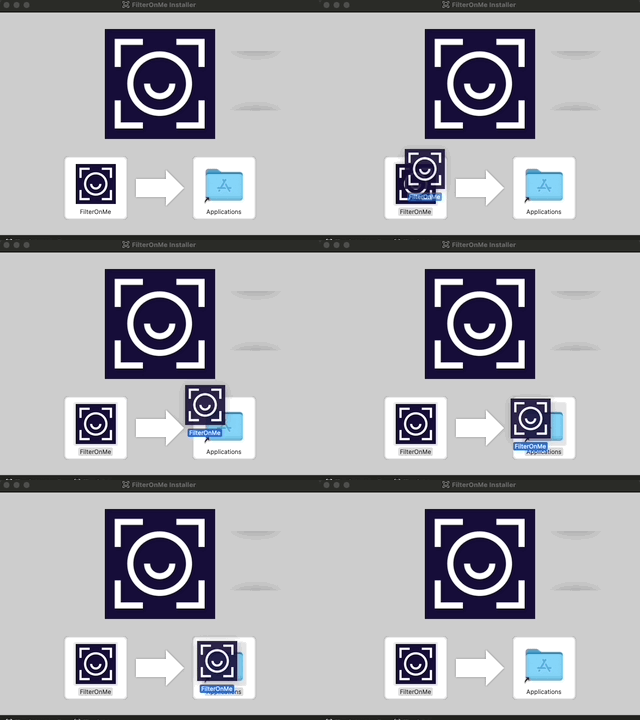
- Open Filteronme from Spotlight Search or your Applications folder.
- Allow camera access when macOS asks.
- Approve the camera extension: open System Settings → Login Items & Extensions → Camera Extensions, click the info icon next to Filteronme.
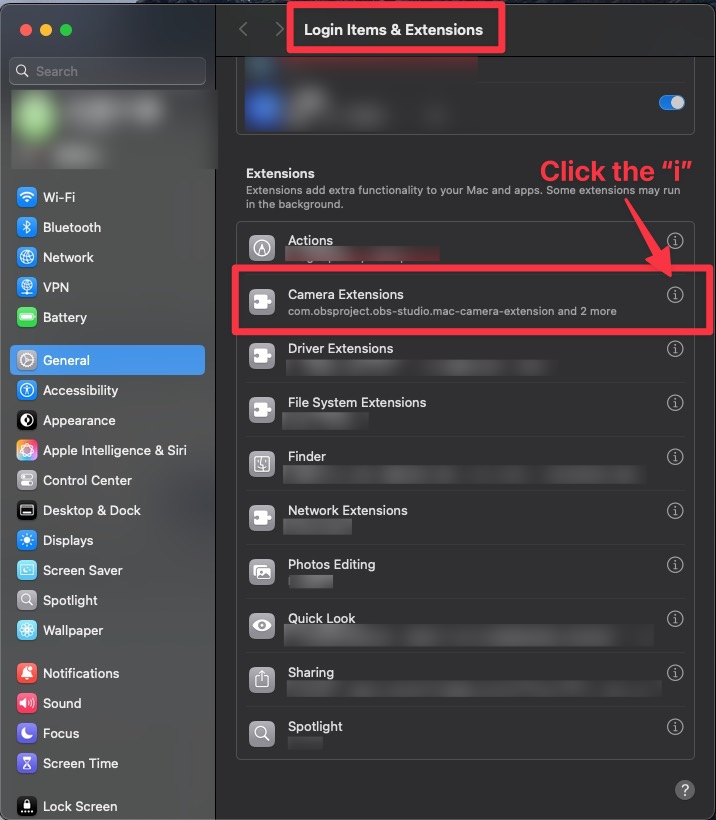
- Toggle the Filteronme camera extension on.
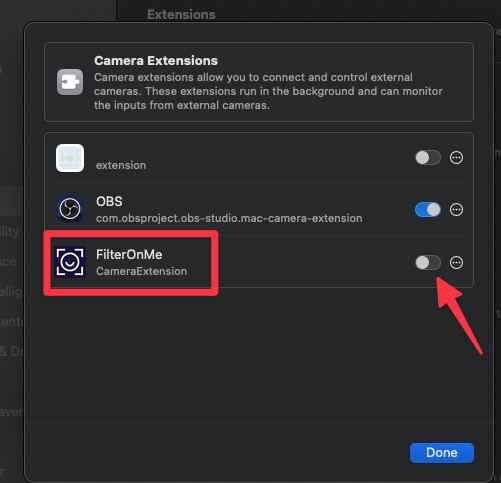
Can't find this panel, or on an older macOS? See where is the camera extension in Mac settings.
- Sign in with your email.
- Pick the camera you want to use inside Filteronme.
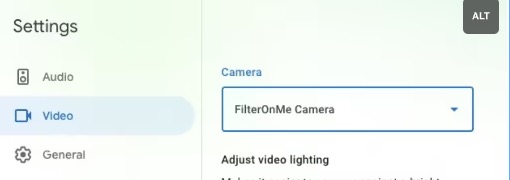
- In your video app (Zoom, Discord, FaceTime, Meet, etc.), open its video/camera settings and select Filteronme Camera.
Still stuck on the setup screen?
Try the stuck-on-setup fix — it walks through resetting the camera extension.
If that doesn't clear it, do a full reinstall.
Related
Did this answer your question?